Acesso aos dados
The full sample-level data for each organism can be downloaded from the AMRnet dashboard itself, using the ‘Download database (CSV) format’ button at the bottom of the page. In addition, you can access AMRnet data via the API described below.
Architectures: The API architectures have 2 options developed for the project which include:
1. Download data via bucket
Nota
Organism name for downloading files from AWS:
Escherichia coli (diarrheagenic) as amrnetdb-Escherichia_coli_ diarrheagenic;
Escherichia coli as amrnetdb-Escherichia_coli;
Klebsiella pneumoniae as amrnetdb-Klebsiella_pneumoniae;
Neisseria gonorrhoeae as amrnetdb-Neisseria_gonorrhoeae;
Salmonella (invasive non-typhoidal) as amrnetdb-Salmonella_enterica_invasive_nontyphoidal;
Salmonella (non-typhoidal) as amrnetdb-Salmonella_enterica_nontyphoidal;
Shigella as amrnetdb-Shigella_EIEC;
Salmonella Typhi as amrnetdb-Salmonella_Typhi
a. Data accessing using Browser
i. Viewing Available Files
Step 1: Open a web browser (Chrome, Firefox, Safari, etc.).
Step 2: Navigate to the root bucket URL by clicking https://amrnet.s3.amazonaws.com/.
Step 3: This URL leads to an XML text representation listing all the files available in the Amazon S3 bucket. The XML format will display information about each file, such as its key (name), last modified date, size, etc.
ii. Searching for a Specific Organism
Step 1: Use the search functionality of your browser (Ctrl-F on Windows/Linux or Cmd-F on Mac).
Step 2: Type the name of file based on the organism you are looking for in the search box. This will highlight all occurrences of the organism’s name in the XML text, making it easier to locate the specific file associated with that organism.
iii. Downloading a File
Step 1: Once you find the
<Key>field that contains the file name you are interested in, note down the file name.Step 2: Open a new tab in your browser.
Step 3: Copy the root bucket URL
https://amrnet.s3.amazonaws.cominto the new tab’s address bar.Step 4: Append a slash
/to the end of the URL, followed by the contents of the<Key>field (file name).Step 5: Press Enter, and your browser should automatically start downloading the file. This method has been tested to work in Chrome, Firefox, and Safari.
OR
Copy the URL below and modify the organism name added at the end amrnet-
amrnetdb-Escherichia_coli_ diarrheagenic.csv.gz based on organism list given above.
Example:
https://amrnet.s3.amazonaws.com/amrnet-latest/amrnetdb-Escherichia_coli_ diarrheagenic.csv.gz
b. Data accessing using Command line
Step 1: Open your terminal.
Step 2: Use the following command to download data from the provided URL:
curl -O https://amrnet.s3.amazonaws.com/
Similarly, if you need to download a specific file from the URL, you would specify the file name in the URL. For example:
curl -O https://amrnet.s3.amazonaws.com/filename
Example:
curl -O https://amrnet.s3.amazonaws.com/amrnet-latest/amrnetdb-Escherichia_coli_ diarrheagenic.csv.gz
c. Data accessing using Using S3cmd tool
The s3cmd tool is a versatile and powerful command-line utility designed to interact with Amazon S3 (Simple Storage Service). It simplifies tasks such as browsing, downloading, and syncing files from S3 buckets. This tool is particularly useful for managing large datasets and automating workflows involving S3 storage.
2. Download data via API
Send an email to amrnetdashboard@gmail.com requesting an API token.
Example:
Subject: Request for API Token
I am writing to request an API token for accessing the AMRnet database. Below are the specific details for my request:

Organism Name: Escherichia coli
You will receive email from us with all the necessary details. like: API_TOKEN_KEY, collection, database, dataSource.
Once you receive these details use the method below to download required data.
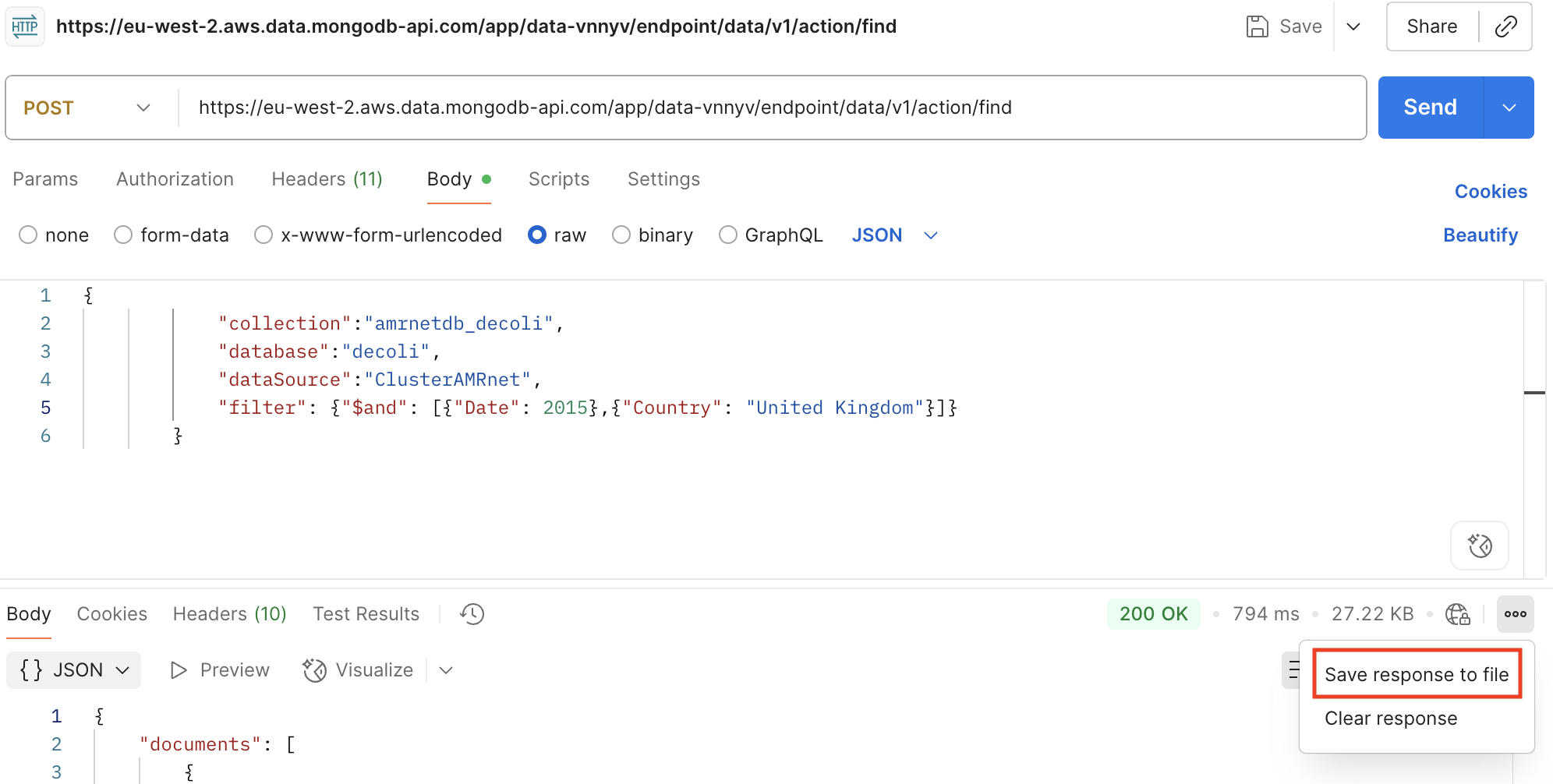
To download data with specific Country and Date add a filter.
Example code to download all the data for an organism:
curl --location --request POST 'https://eu-west-2.aws.data.mongodb-api.com/app/data-vnnyv/endpoint/data/v1/action/find' \
        --header 'Content-Type: application/json' \
        --header 'Access-Control-Request-Headers: *' \
        --header 'api-key: <API_TOKEN_KEY>' \
        --data-raw '{
            "collection":"<COLLECTION_NAME>",
            "database":"<DATABASE_NAME>",
            "dataSource":"<dataSource_NAME>"
        }'
Example code to download the data with filters Date and Country for an organism:
curl --location --request POST 'https://eu-west-2.aws.data.mongodb-api.com/app/data-vnnyv/endpoint/data/v1/action/find' \
        --header 'Content-Type: application/json' \
        --header 'Access-Control-Request-Headers: *' \
        --header 'api-key: <API_TOKEN_KEY>' \
        --data-raw '{
            "collection":"<COLLECTION_NAME>",
            "database":"<DATABASE_NAME>",
            "dataSource":"<dataSource_NAME>",
            "filter": {"$and": [{"Date": 2015},{"Country": "United Kingdom"}]}
        }'
Example code to download the data with only one filter e.g. Date for an organism:
curl --location --request POST 'https://eu-west-2.aws.data.mongodb-api.com/app/data-vnnyv/endpoint/data/v1/action/find' \
        --header 'Content-Type: application/json' \
        --header 'Access-Control-Request-Headers: *' \
        --header 'api-key: <API_TOKEN_KEY>' \
        --data-raw '{
            "collection":"<COLLECTION_NAME>",
            "database":"<DATABASE_NAME>",
            "dataSource":"<dataSource_NAME>",
            "filter": {"Date": 2015}
        }'
Example code to download the data and save in JSON:
curl --location --request POST 'https://eu-west-2.aws.data.mongodb-api.com/app/data-vnnyv/endpoint/data/v1/action/find' \
        --header 'Content-Type: application/json' \
        --header 'Access-Control-Request-Headers: *' \
        --header 'api-key: <API_TOKEN_KEY>' \
        --data-raw '{
            "collection":"<COLLECTION_NAME>",
            "database":"<DATABASE_NAME>",
            "dataSource":"<dataSource_NAME>",
            "filter": {"Date": 2015}
        }' > output.json
Nota
To test your cURL requests, you can use the online tool Run Curl Commands Online. This tool provides a convenient way to execute and test your cURL commands directly in your web browser without needing to install any additional software.
a. Command line
To download data using our API, please follow the given steps:
Once you have API token, Replace
<API_TOKEN_KEY>in the following command with the actual API token you received.Determine the specific database and collection you need data from.
Open your command line interface (CLI) or terminal and execute the following curl command to download data.
If you want to save the response data to a file, you can use the -o option with curl. This command will save the response data to a file named data.json in the current directory.
b. Platform
Nota
Users have the flexibility to access the API through their preferred platform. As an illustration, we provide guidance on utilizing the Postman tool to access data via the API.
Steps to Import the Example cURL Command using Postman
Open Postman.
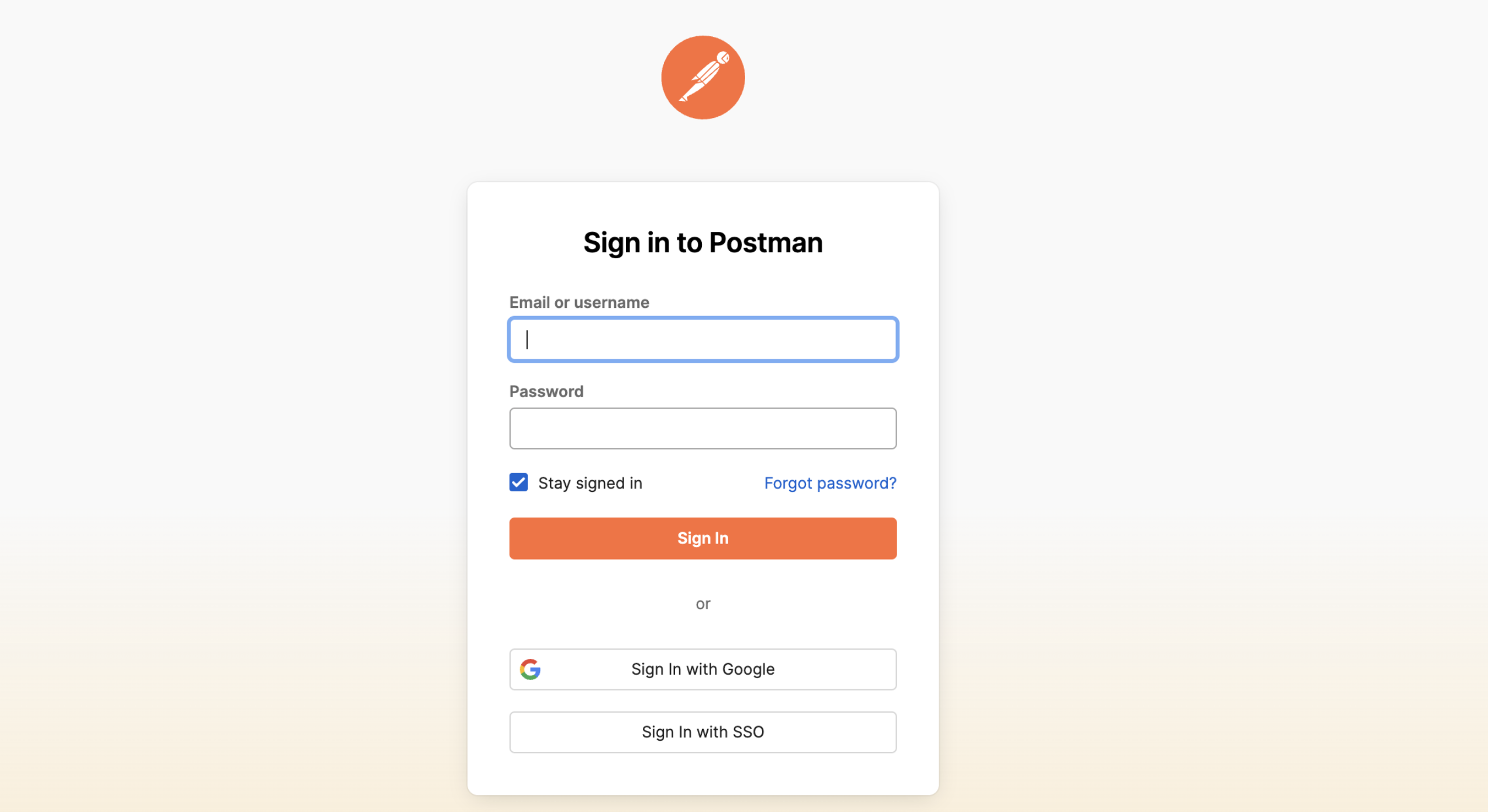
Sign In with your credentials and «discover what a postman can do»
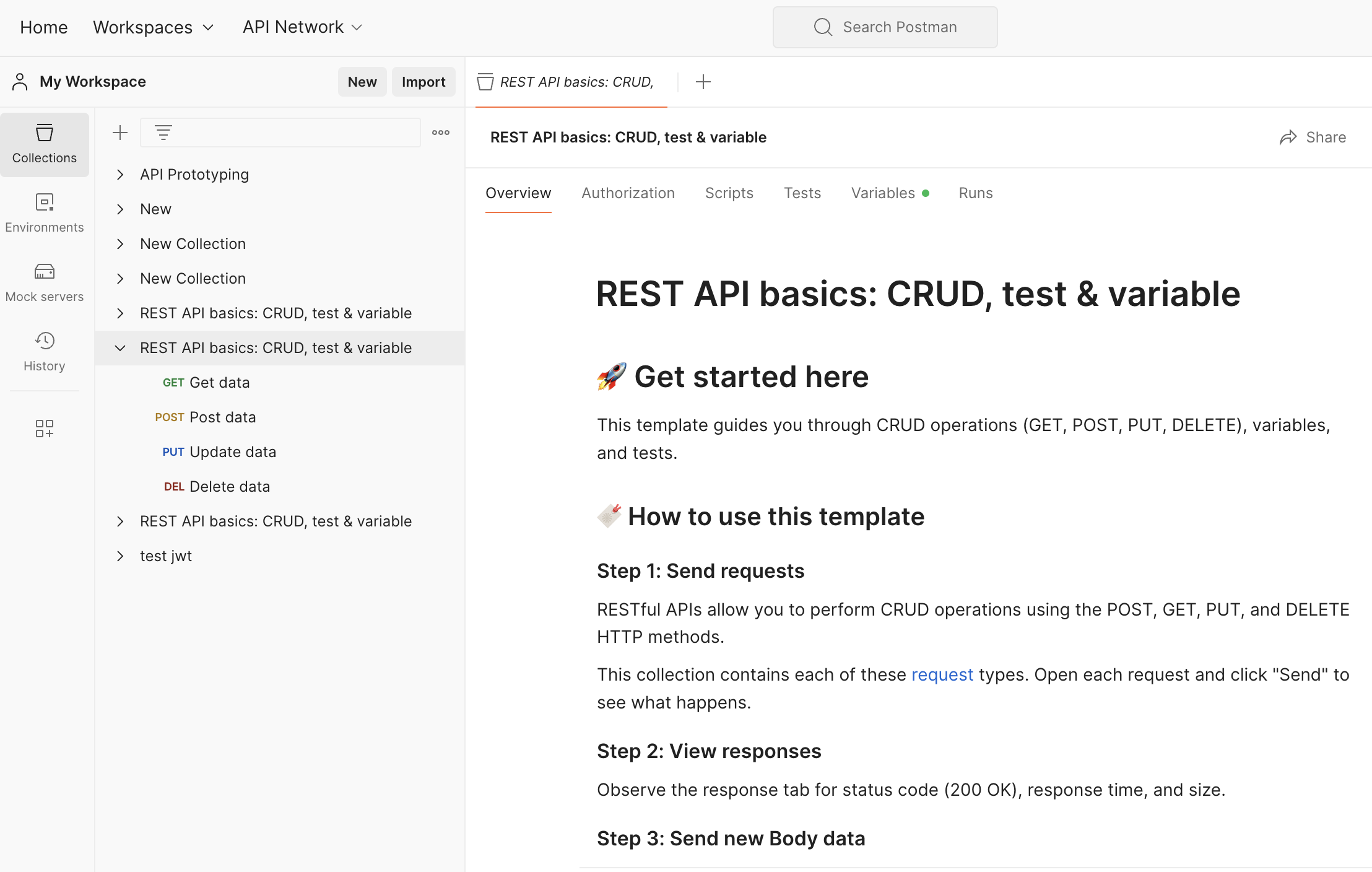
Click the «Import» button.
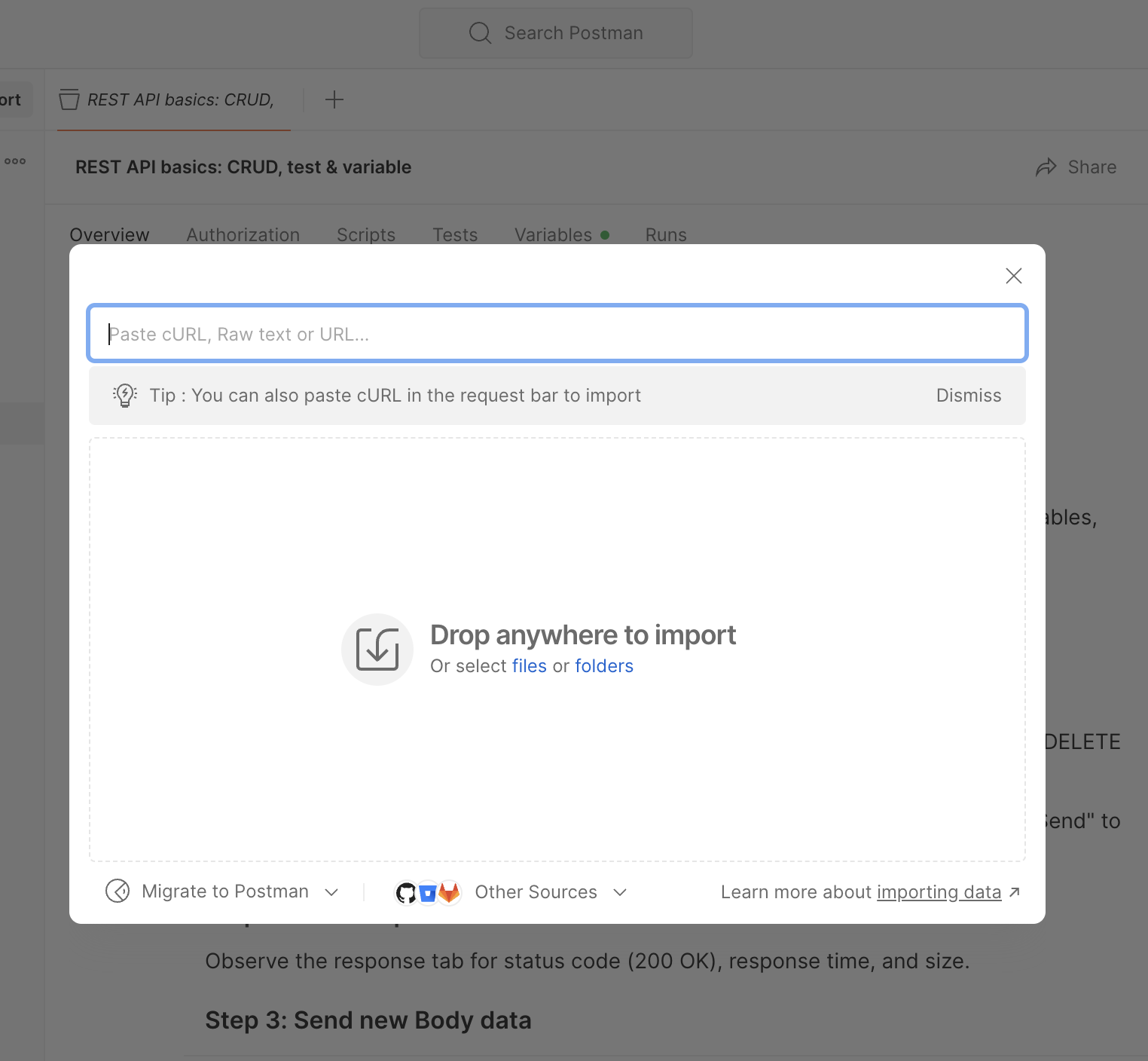
Paste the cURL command in Import:
Review the imported request details and add
<API_TOKEN_KEY>inHeadersin Postman.
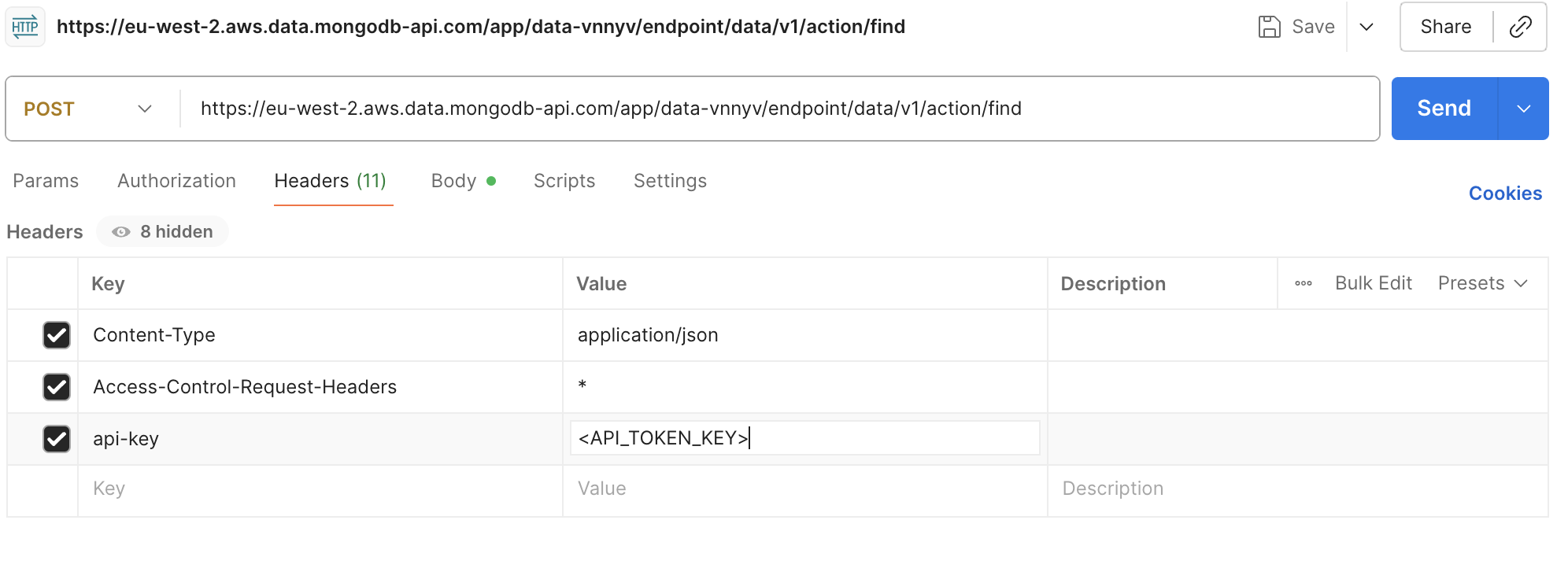
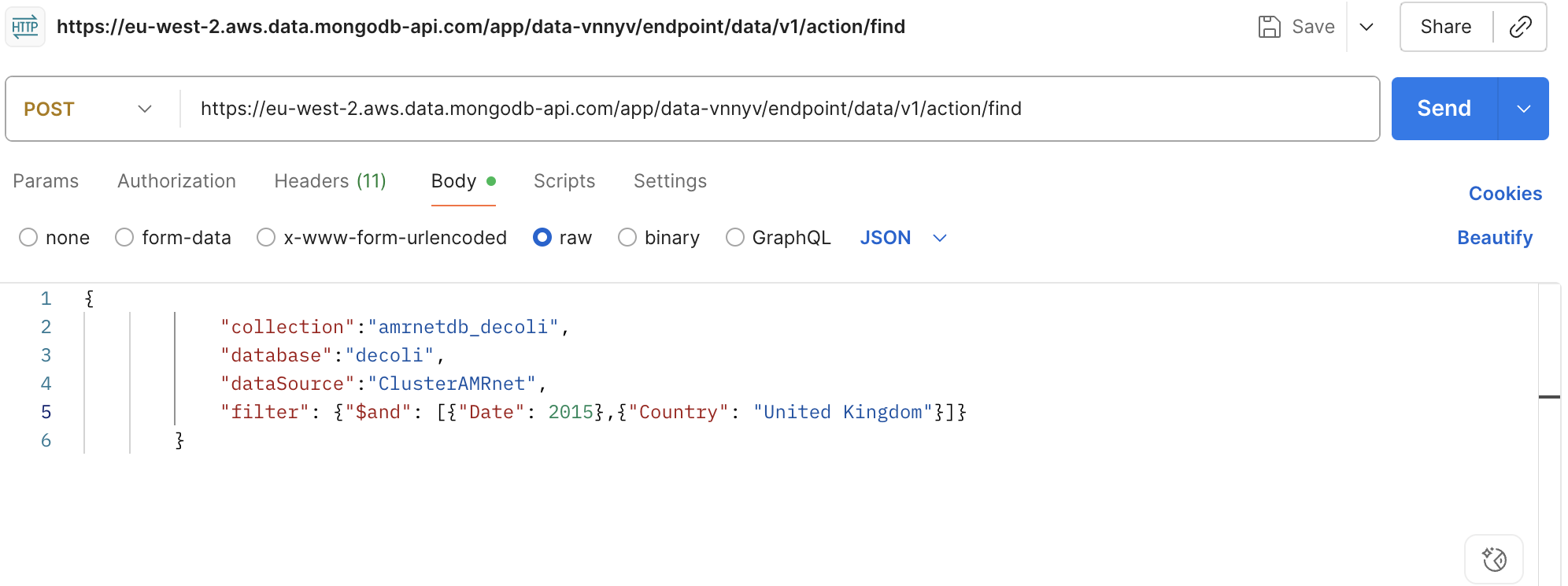
Replace database name and collection name based on data to download
Add filters to get specific data in
filter
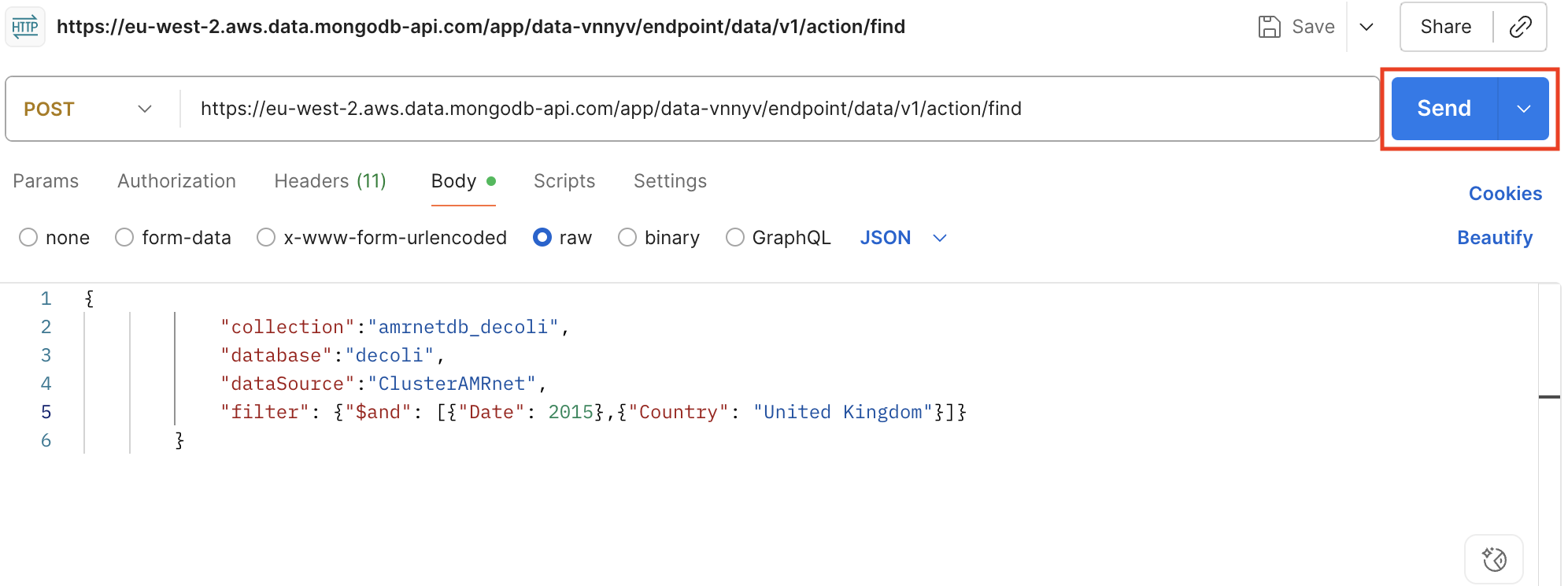
Click «Send» to execute the request and view the response.
Save the response in file